Skip to the features
Rittenboek.com
Our websites
↑

Rittenboek · A look inside the application

An easier way to keep track of trips.

See how saved routes, a quick return trip and a clear overview reduce the information you need to enter.

All screens use fictional example data. You can enlarge every image. The screenshots show the Dutch interface.

Example screen: Your trips in one view. Fictional data in the Dutch application interface.
Fictional example dataDutch interface

See how easy it is

Less admin. Get on with your day.

See how little work your administration needs to take.

Rittenboek

0:14 · Dutch narration. Play the film whenever you like.Open the film separately ↗
Read the narration

Je weet waar je bent geweest. Een terugrit kun je vanuit een bestaande rit voorbereiden. Zo houd je grip op je zakelijke en privéritten. Zo komen je ritten samen in een controleerbaar rapport. Kies de administratie die met je meewerkt.

How to get started

Choose your tools and subscription in one shared customer portal.

  1. Choose your package

    Choose your tools, customer type and monthly or annual billing. Review the first total payment and recurring costs.

  2. Create an account or log in

    Create an account or log in with your existing account. Confirm your email address when prompted.

  3. Review your order

    Check your package, billing details, payment period and terms before completing your order.

  4. Open your products

    Once your order is confirmed, open your chosen tools through My products in the customer portal.

Your working day in one description

Describe your working day in Urenboek or Rittenboek and check what has been recorded.

  1. Describe your working day

    Include the date, client and hours worked. For journeys, include the addresses and any private detour.

  2. Process and complete

    Process your entry and check what has already been saved. Add missing details in the Control centre; do not enter saved items again.

  3. Check hours and kilometres

    Check your hours, the actual distance travelled and the odometer readings you recorded. Also check the kilometres charged to the client: do not charge for a private detour.

Rittenboek, step by step

Choose a topic and follow the steps at your own pace.

↑ Back to the short videoBack to all video guides →

Chapter 1 of 51:26

Inloggen, auto’s en stamgegevens

Open video separately ↗

This guide is in Dutch.

Read the Dutch transcript

Een rit sluit aan op een auto en een beginstand. Leg die basis vast en geef je klanten en projecten herkenbare namen voor de invoer die volgt. Klik op Rittenboek.com op Inloggen en open Rittenboek. Meld je aan met je eigen account en controleer de administratie. Je beschikbare functies hangen af van de gekozen boeken en je rol. Begin met de auto en de werkelijke tellerstand, zodat nieuwe ritten op een gecontroleerde beginstand aansluiten. Open Auto’s en stamdata. Voeg je auto toe met het kenteken en herkenbare voertuiggegevens. Controleer de gebruiksperiode en leg de beginstand vast die je werkelijk hebt afgelezen. Die stand vormt het begin van je registratie. De privételler gebruikt een ingestelde periode en begininformatie; controleer die gegevens voordat je op de getoonde totalen vertrouwt. Leg de klanten en projecten vast waarvoor je rijdt. Kies bij een zakelijke rit de juiste combinatie wanneer je de rit aan een opdracht wilt koppelen. Voor afzonderlijke doorbelasting moeten de klant, het project en de kilometerafspraak kloppen. Gebruik herkenbare namen en maak afgeronde projecten inactief wanneer je ze niet meer in de invoerkeuze nodig hebt. Dezelfde namen en adressen helpen je bij een beschreven werkdag. Kijk na verwerking altijd na welke klant, auto en route zijn herkend. Je auto, beginstand en opdrachtgegevens staan klaar. Ga verder met Ritten invoeren, herhalen en importeren. Daar volg je een rit van adressen en ritdoel naar gecontroleerde tellerstanden.

Open the full transcript ↗

See what you can record and share with the tools. Follow the steps below to get started and choose a subscription.

Examples use fictional data.

Choose your own tour

What would you like to see?

18 features explained in short steps. Choose a section or search for a topic.

18 of 18 features

01Your own trips

Your trips in one view

See where you travelled each day, which car you used and how the recorded distances connect.

  • Filter by car, month, quarter or year.
  • Create an onward or return trip from an existing trip.
  • Track private mileage with a separate annual counter.
Back to the overview
Rittenboek.comFictional example data
Example screen: Your trips in one view. Fictional data in the Dutch application interface.Enlarge example
Your trips in one viewDutch interface
02Your own trips

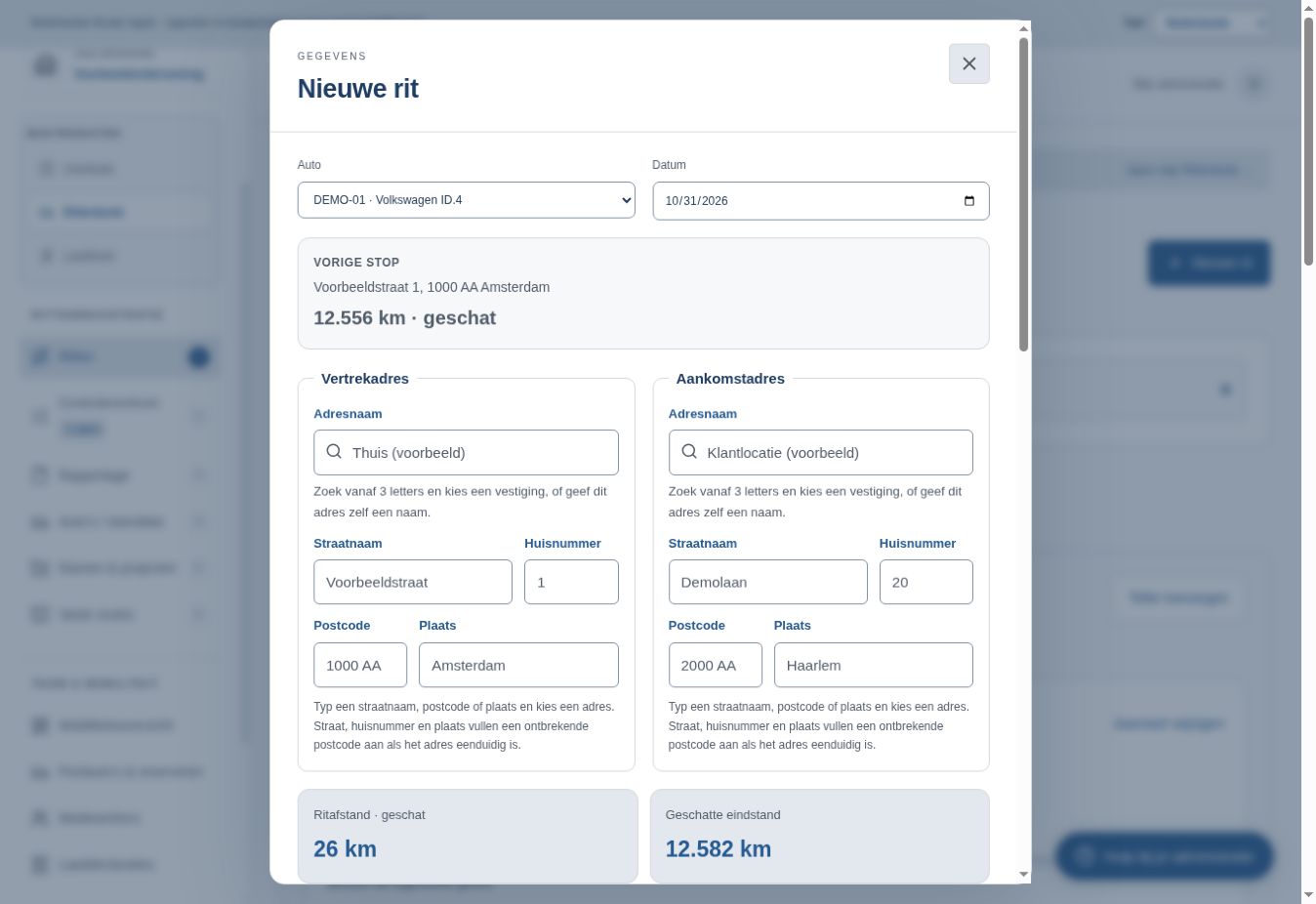
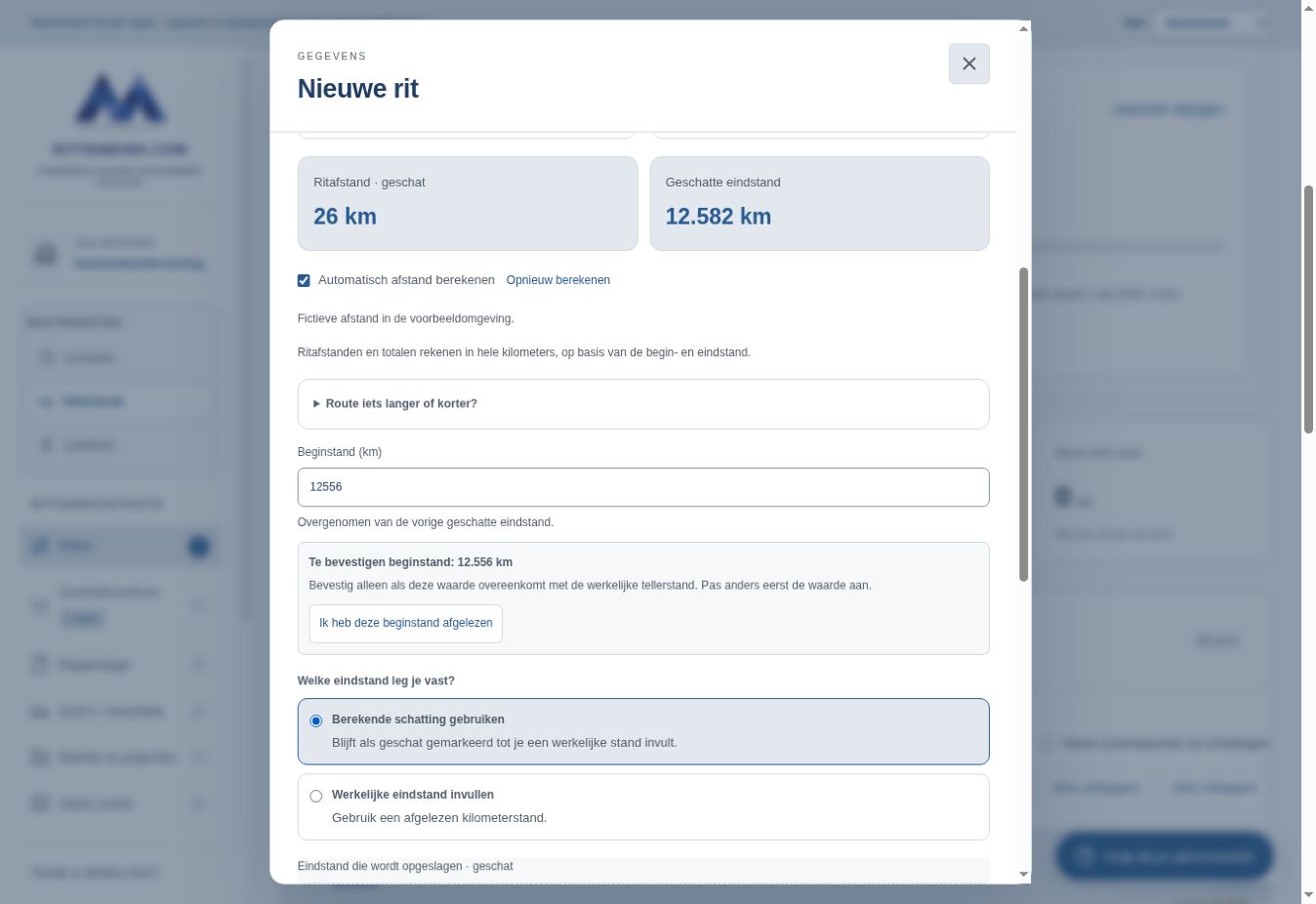
Record a trip

Enter the departure, destination and purpose. View the distance while keeping actual odometer readings identifiable.

  • Reuse previously entered addresses and trip purposes.
  • Keep estimated and observed readings separate.
  • Record business, private or commuting trips and notes.

The distance in this example is fictional.

Back to the overview
Rittenboek.comFictional example data
Example screen: Record a trip. Fictional data in the Dutch application interface.Enlarge example
Record a tripDutch interface
03Your own trips

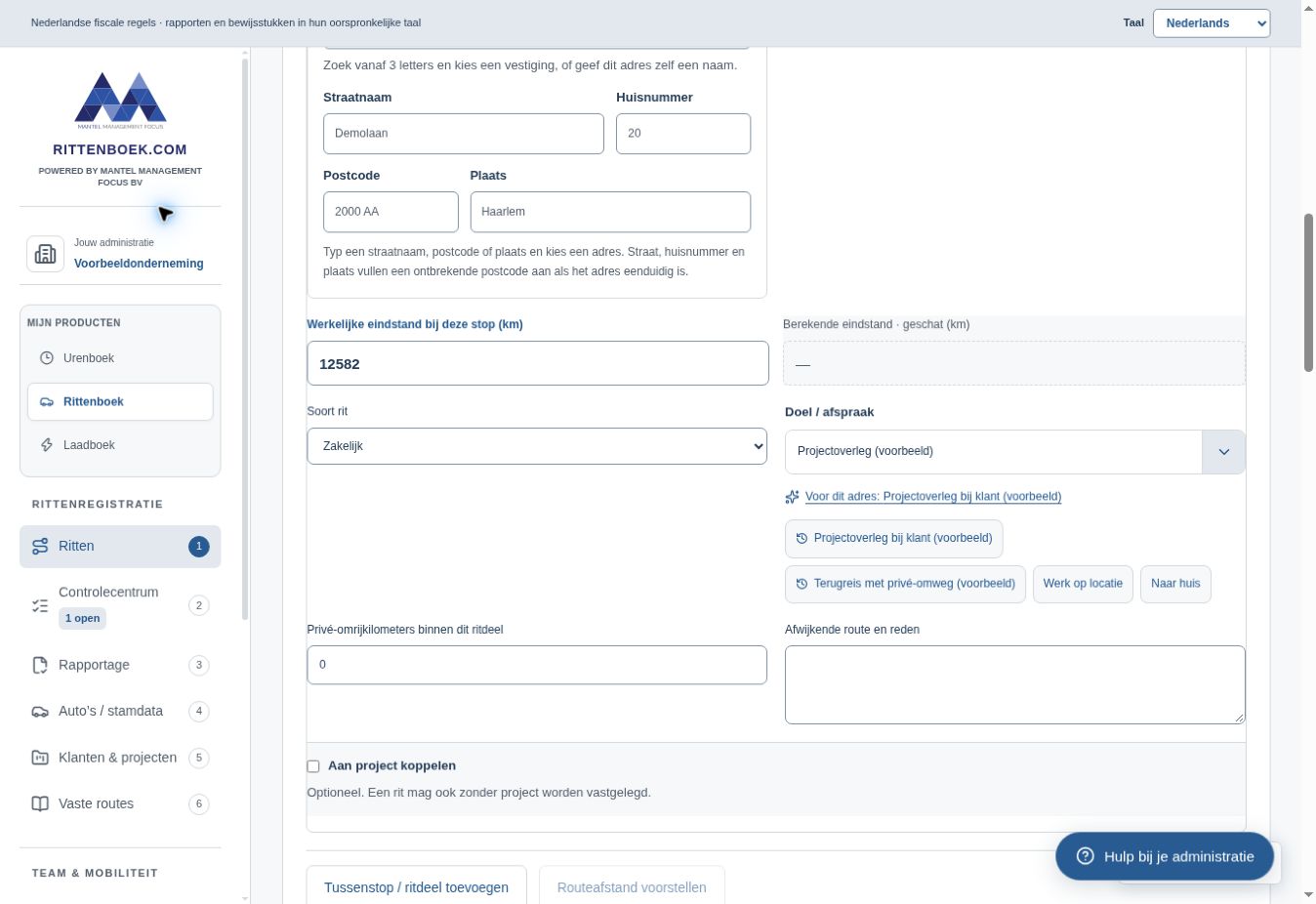
Stops and route changes

Split a route into legs so each stop has its own destination, trip category and supporting details.

  • Record the actual odometer reading at each stop.
  • Explain detours and additional private distance.
  • Choose the customer, project and billing for each business leg.
Back to the overview
Rittenboek.comFictional example data
Example screen: Stops and route changes. Fictional data in the Dutch application interface.Enlarge example
Stops and route changesDutch interface
04Your own trips

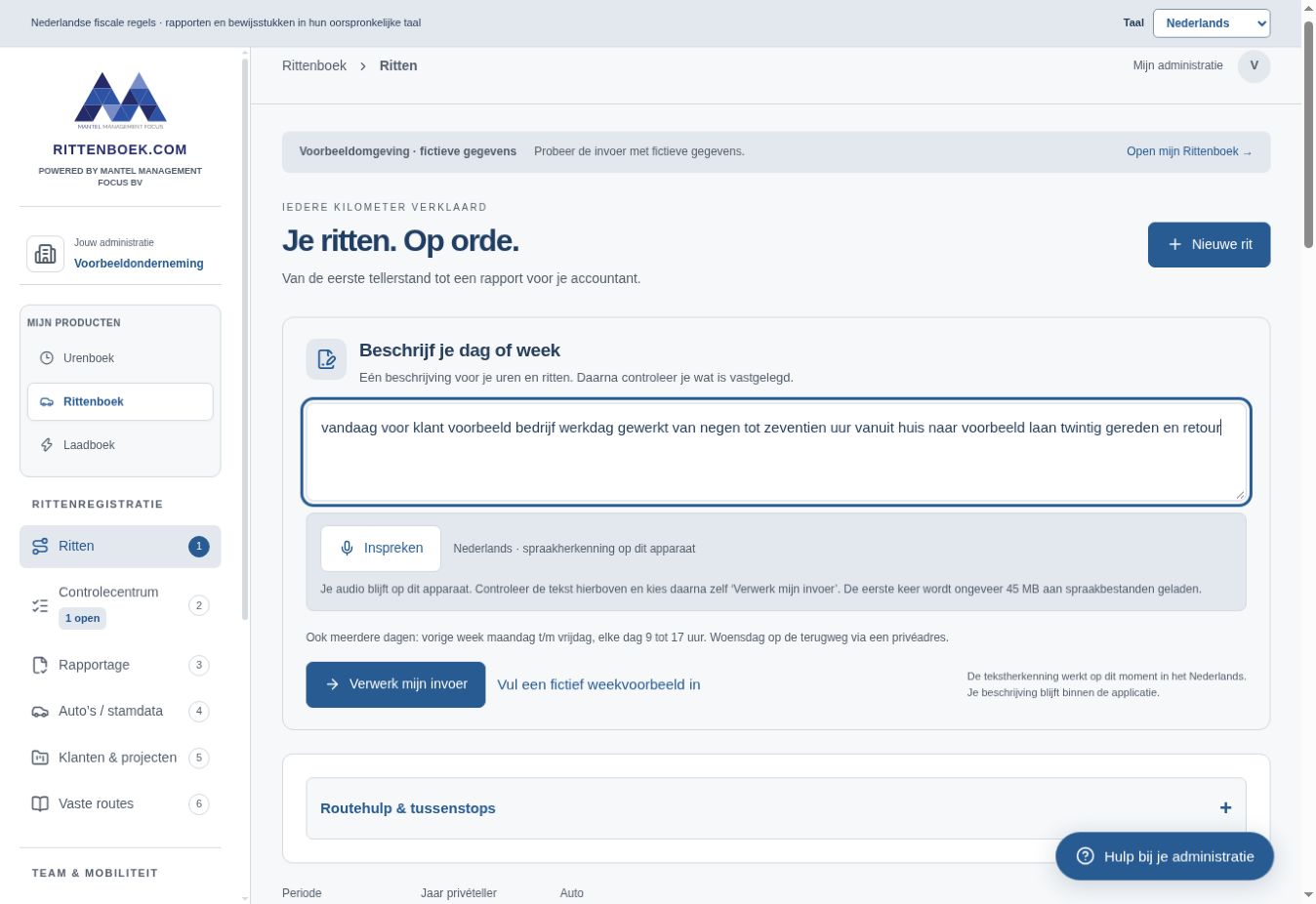
One short description. The app processes it.

Type your day or week in Dutch, including the client, hours worked and any trips. The app processes complete information. You check the result and fill in only missing details.

  • Include who you worked for, when and for how long, and which trips you made.
  • Valid, complete hours and trips are processed within the products you can access.
  • If something is missing or unclear, that part remains a draft in the review items.

Short descriptions are supported in Dutch. You can edit the text before processing it. Your description is processed within the application, without an external AI provider. You can edit the text and choose when to process it.

Back to the overview
Rittenboek.comFictional example data
Example screen: One short description. The app processes it. Fictional data in the Dutch application interface.Enlarge example
One short description. The app processes it.Dutch interface
05Your own trips

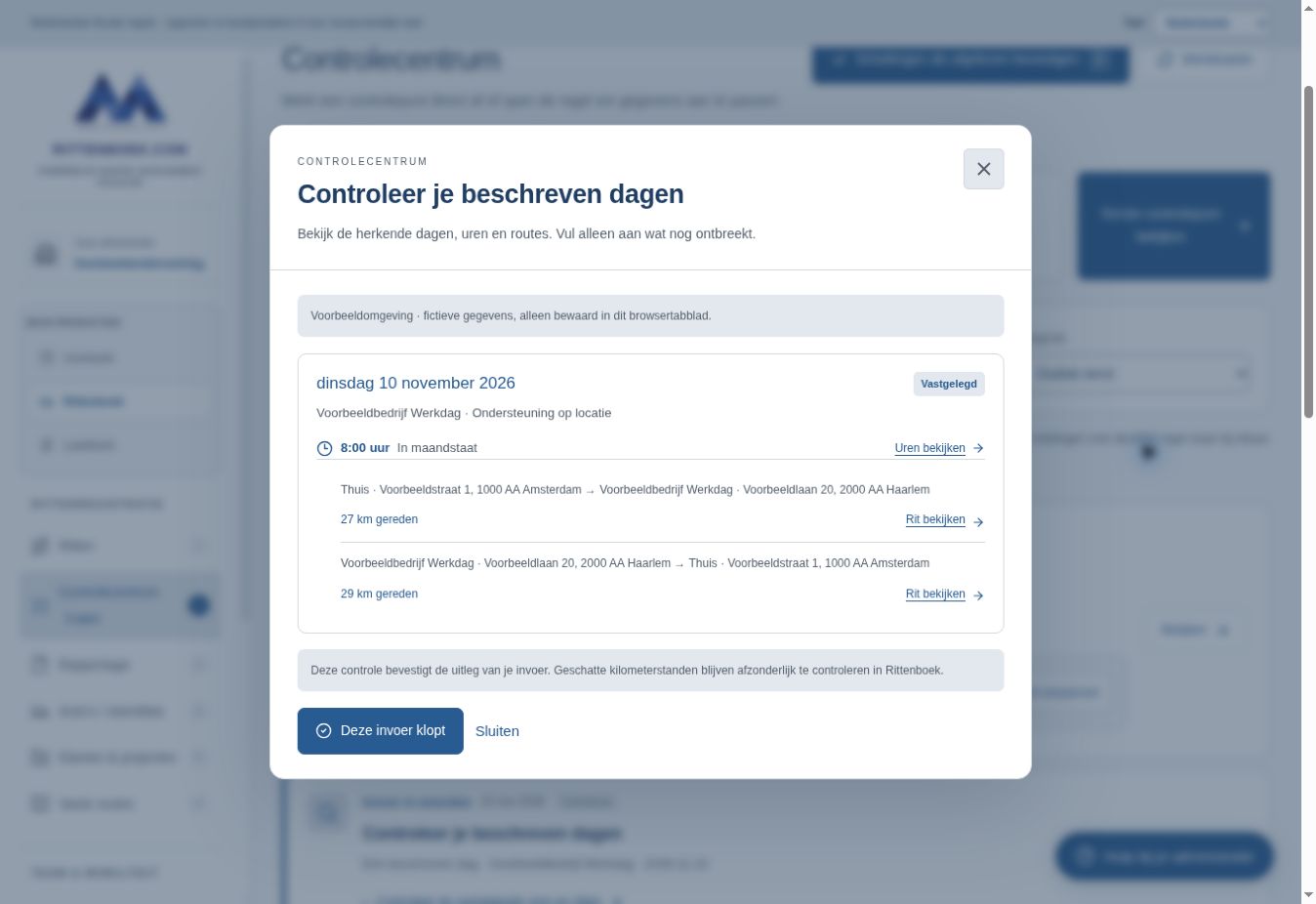
You stay in control.

Process my input saves valid, complete information. Check the result and complete open drafts in the Review Centre.

  • Read the text before processing it.
  • Check the client, project, time, trip details and actual odometer readings.
  • Complete any missing information and confirm that your input is correct.

Processing trips requires Rittenboek; processing hours requires Urenboek. You use only the products in your chosen package.

Back to the overview
Rittenboek.comFictional example data
Example screen: You stay in control. Fictional data in the Dutch application interface.Enlarge example
You stay in control.Dutch interface
06Your own trips

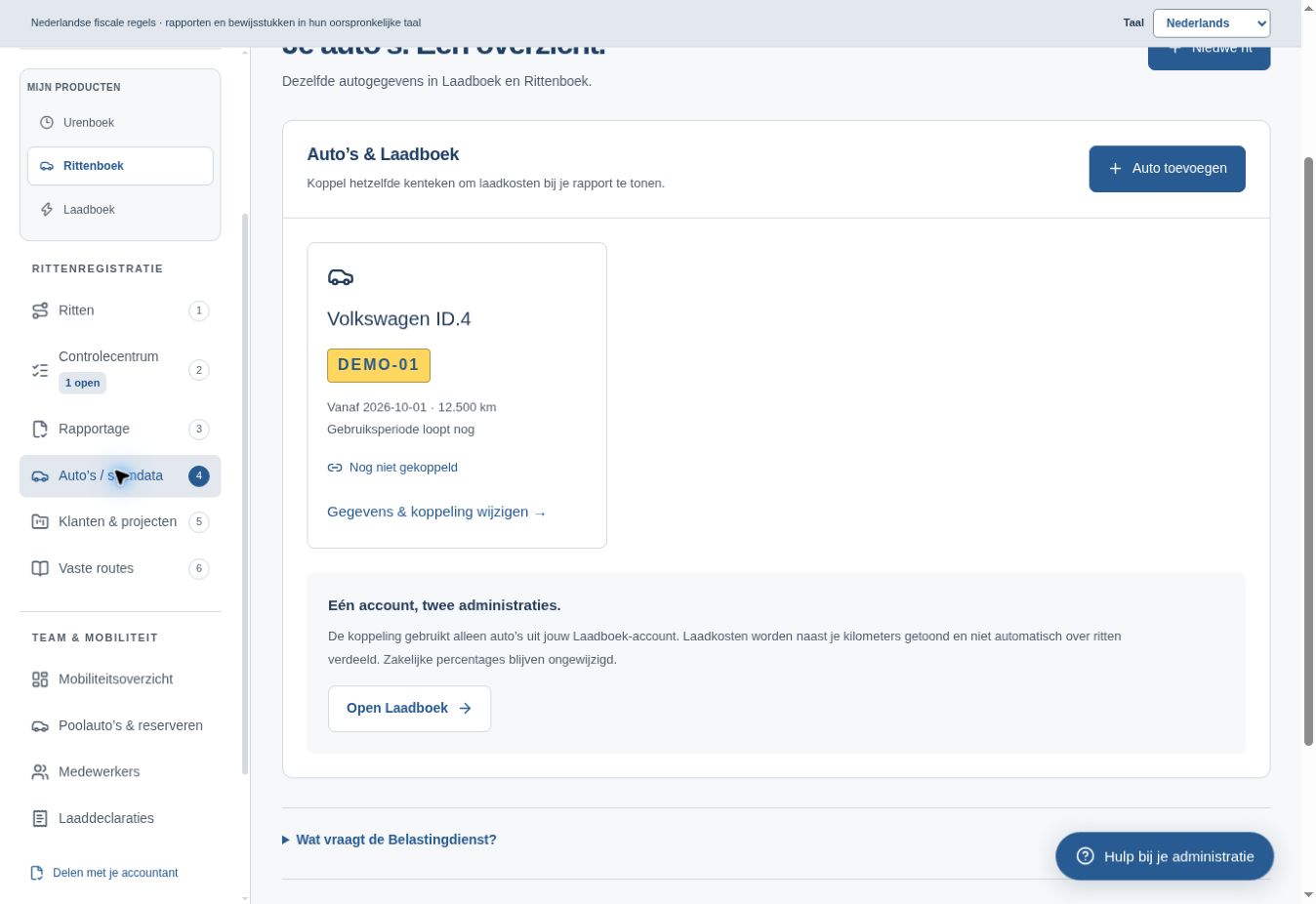
Cars and periods of use

Manage the cars you drive and retain the details needed for each car’s trip records.

  • Record the registration, make and model.
  • Enter the period of use and opening and closing readings.
  • Use the same vehicle records together with Laadboek.

Connecting a car requires separate consent and supported data access.

Back to the overview
Rittenboek.comFictional example data
Example screen: Cars and periods of use. Fictional data in the Dutch application interface.Enlarge example
Cars and periods of useDutch interface
07Your own trips

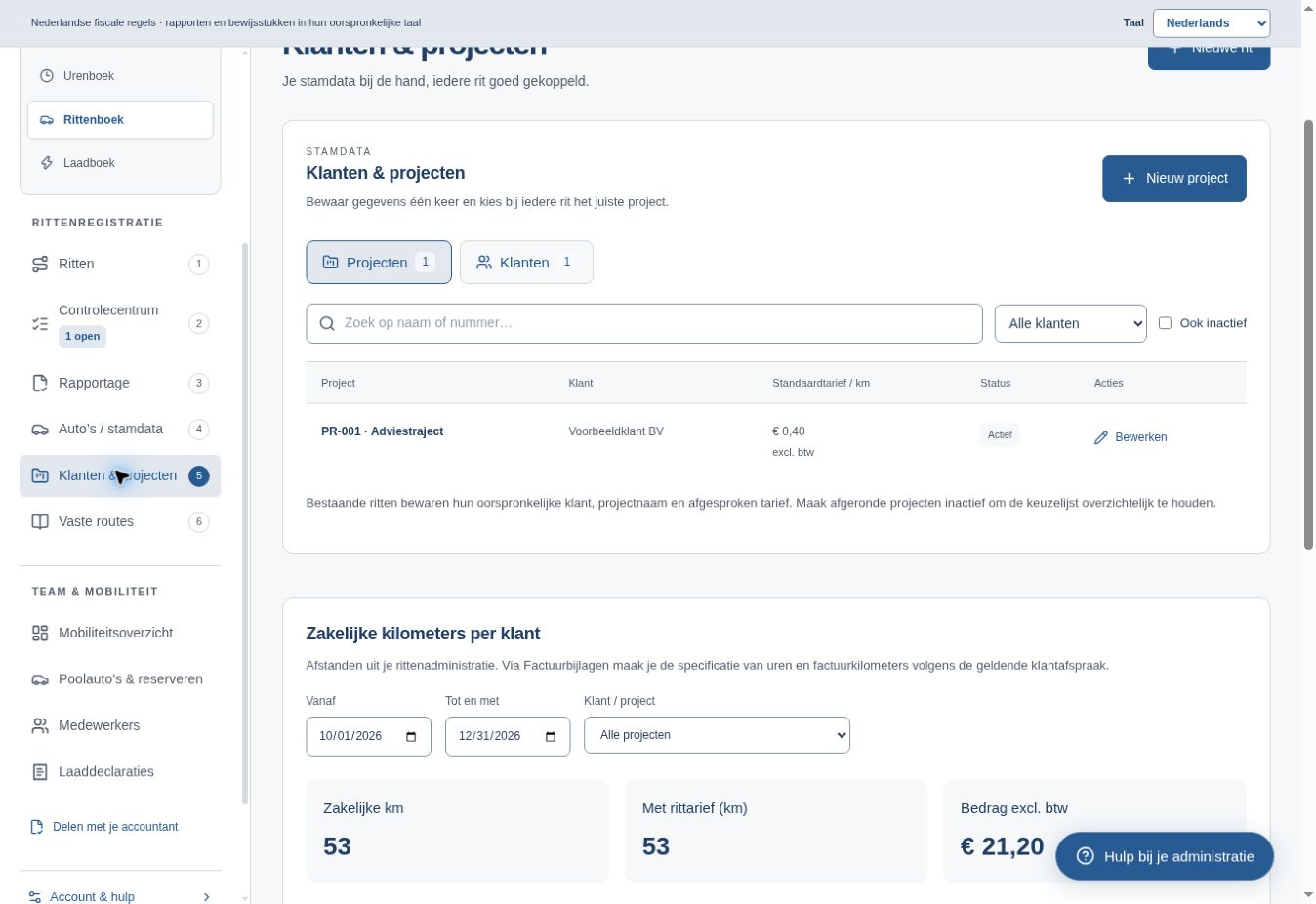
Clients, projects and agreements

Manage assignment periods, active clients and projects, and the rates that apply to your client agreement.

  • Set a start or end date, or leave an assignment open-ended.
  • Counts follow your visible active selection; include inactive records when needed.
  • Store hourly and kilometre rates excluding VAT; blank stays unknown and zero is an explicit zero rate.

An applicable agreement with a validity period takes precedence over the default rate. Previously saved attachments are not repriced.

Back to the overview
Rittenboek.comFictional example data
Example screen: Clients, projects and agreements. Fictional data in the Dutch application interface.Enlarge example
Clients, projects and agreementsDutch interface
08Your own trips

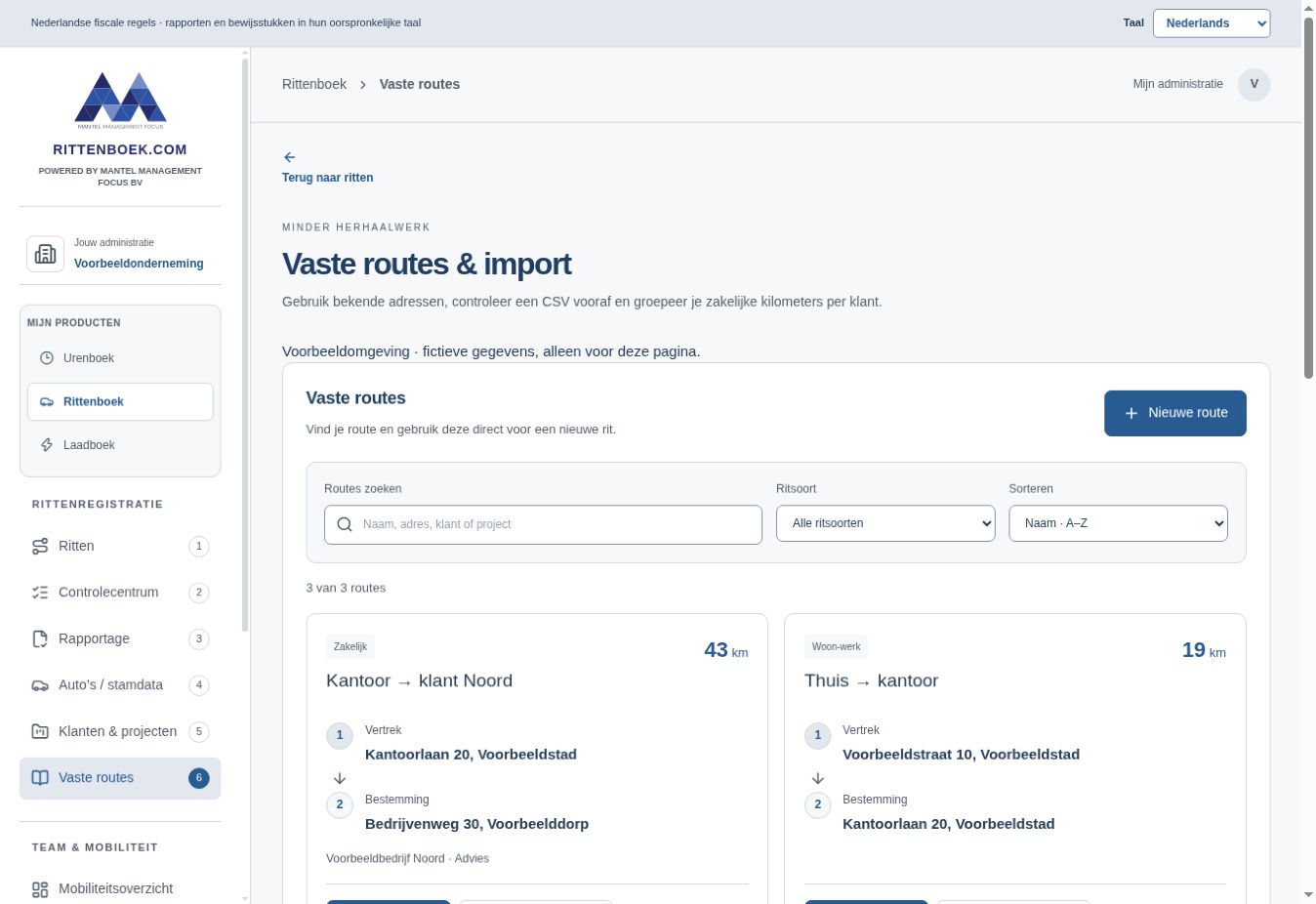
Reuse saved routes

Save a frequently used route and carry its details into a new trip.

  • Give routes a recognisable name.
  • Retain addresses, trip type, purpose and project details.
  • Choose the direction and check the current odometer readings.
Back to the overview
Rittenboek.comFictional example data
Example screen: Reuse saved routes. Fictional data in the Dutch application interface.Enlarge example
Reuse saved routesDutch interface
09Your own trips

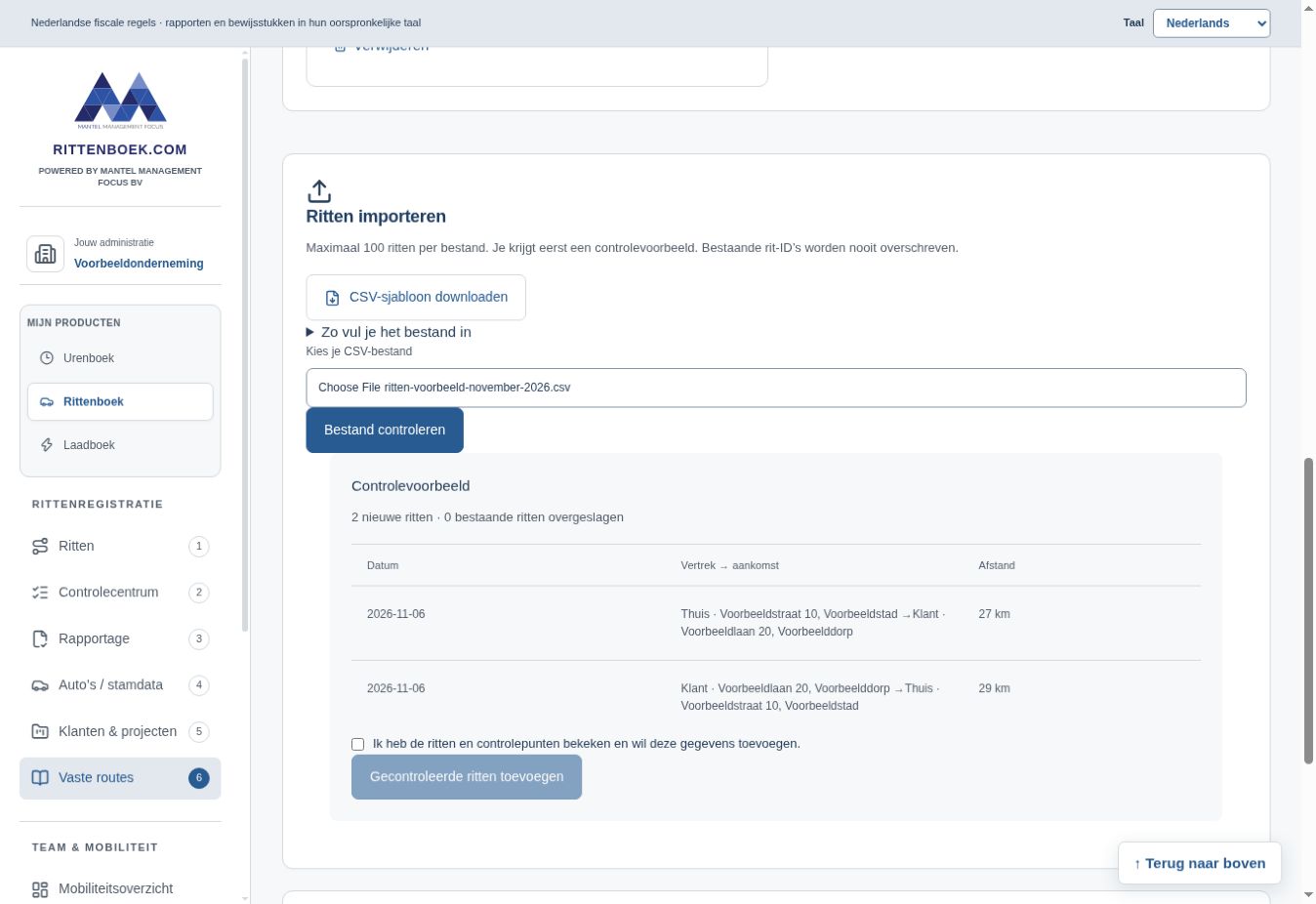
Import trips with a preview

Bring existing trips in from a CSV file and review the contents before adding them.

  • Start with the downloadable CSV template.
  • Preview up to 100 trips per file.
  • Existing trip IDs are skipped rather than overwritten.
Back to the overview
Rittenboek.comFictional example data
Example screen: Import trips with a preview. Fictional data in the Dutch application interface.Enlarge example
Import trips with a previewDutch interface
10Checks and reports

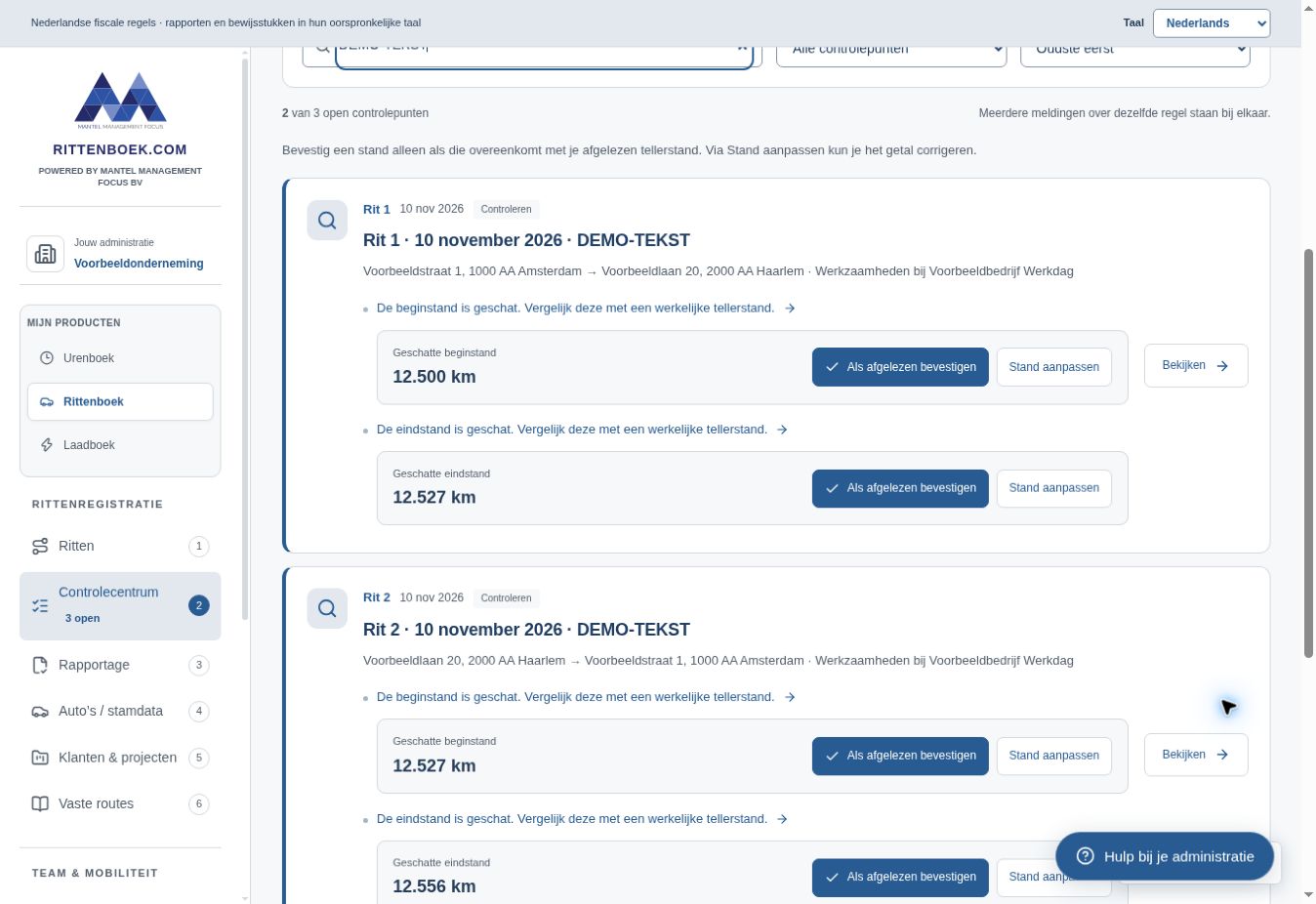
Control centre: check the source records

The Review Centre brings attention points together and takes you to the relevant information. See what needs completing or checking, then move on.

  • Open the indicated record and complete the relevant field.
  • A review item disappears when its source check is resolved.

Does an estimated odometer value match what you actually read? Confirm it directly in the overview with Confirm as read. If the value needs changing, choose Adjust reading.

Back to the overview
Rittenboek.comFictional example data
Example screen: Control centre: check the source records. Fictional data in the Dutch application interface.Enlarge example
Control centre: check the source recordsDutch interface
11Checks and reports

Whole kilometres, estimates and actual readings

Enter new or changed odometer readings in whole kilometres. Consecutive trip distances use the same connecting odometer boundaries.

  • Carry the starting reading forward from the previous stop or enter an observed reading.
  • A calculated ending reading and an estimated starting reading remain identified as estimates.
  • Confirm an actual reading only when you really know it.

Older precise source values remain in the history. +1/−1 adjusts only an actual difference in an estimate; the button limit is not a legal kilometre allowance.

Back to the overview
Rittenboek.comFictional example data
Example screen: Whole kilometres, estimates and actual readings. Fictional data in the Dutch application interface.Enlarge example
Whole kilometres, estimates and actual readingsDutch interface
12Checks and reports

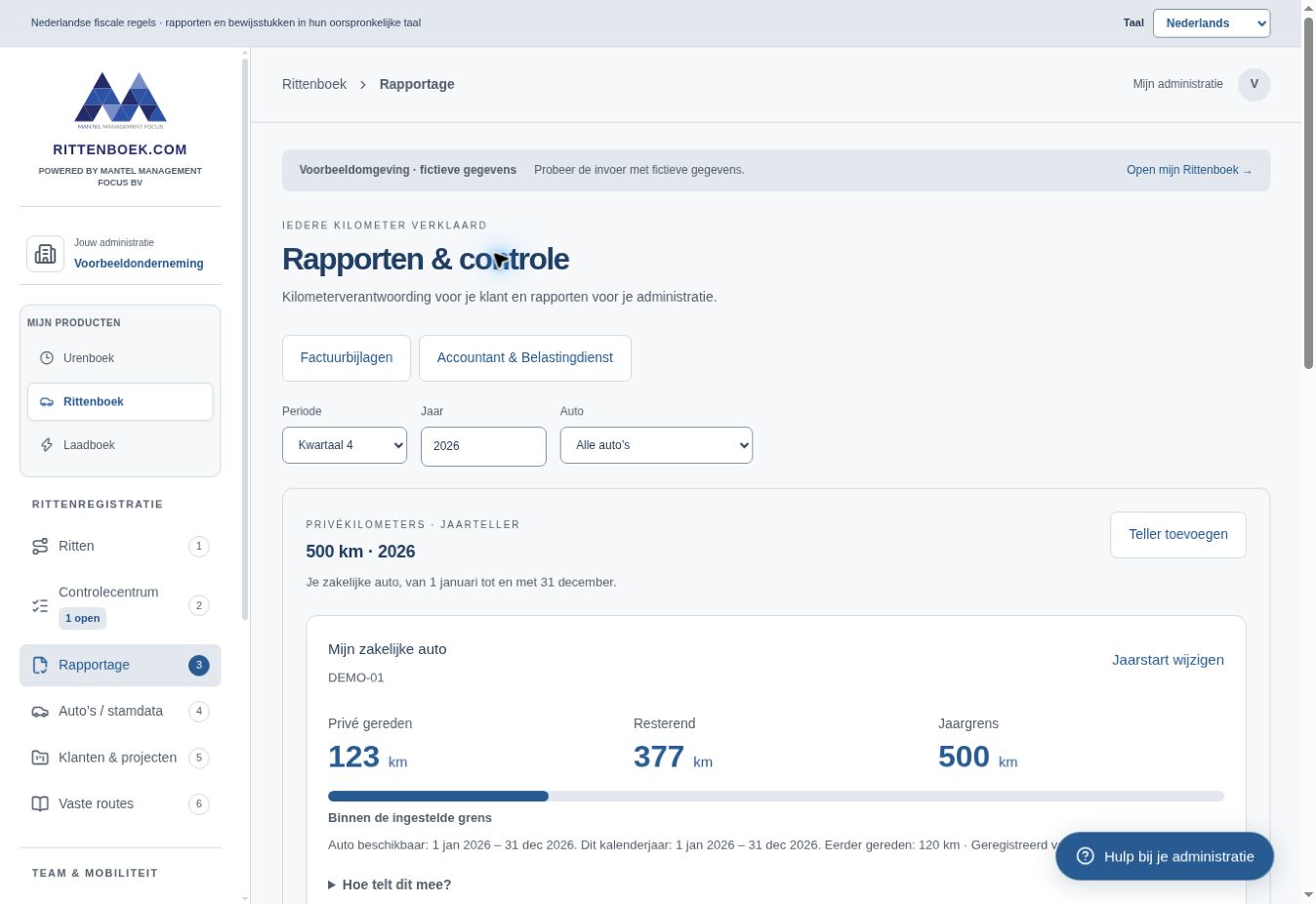
Reports for accounting and review

Choose a report for its recipient and retain a fixed copy for the selected period.

  • Accountant: a compact overview and mileage breakdown.
  • Dutch tax authority: trips, addresses, readings and corrections.
  • Download PDF, CSV and JSON; correction reasons are retained.

A report supports the records; complete and accurate input is still required.

Back to the overview
Rittenboek.comFictional example data
Example screen: Reports for accounting and review. Fictional data in the Dutch application interface.Enlarge example
Reports for accounting and reviewDutch interface
13Checks and reports

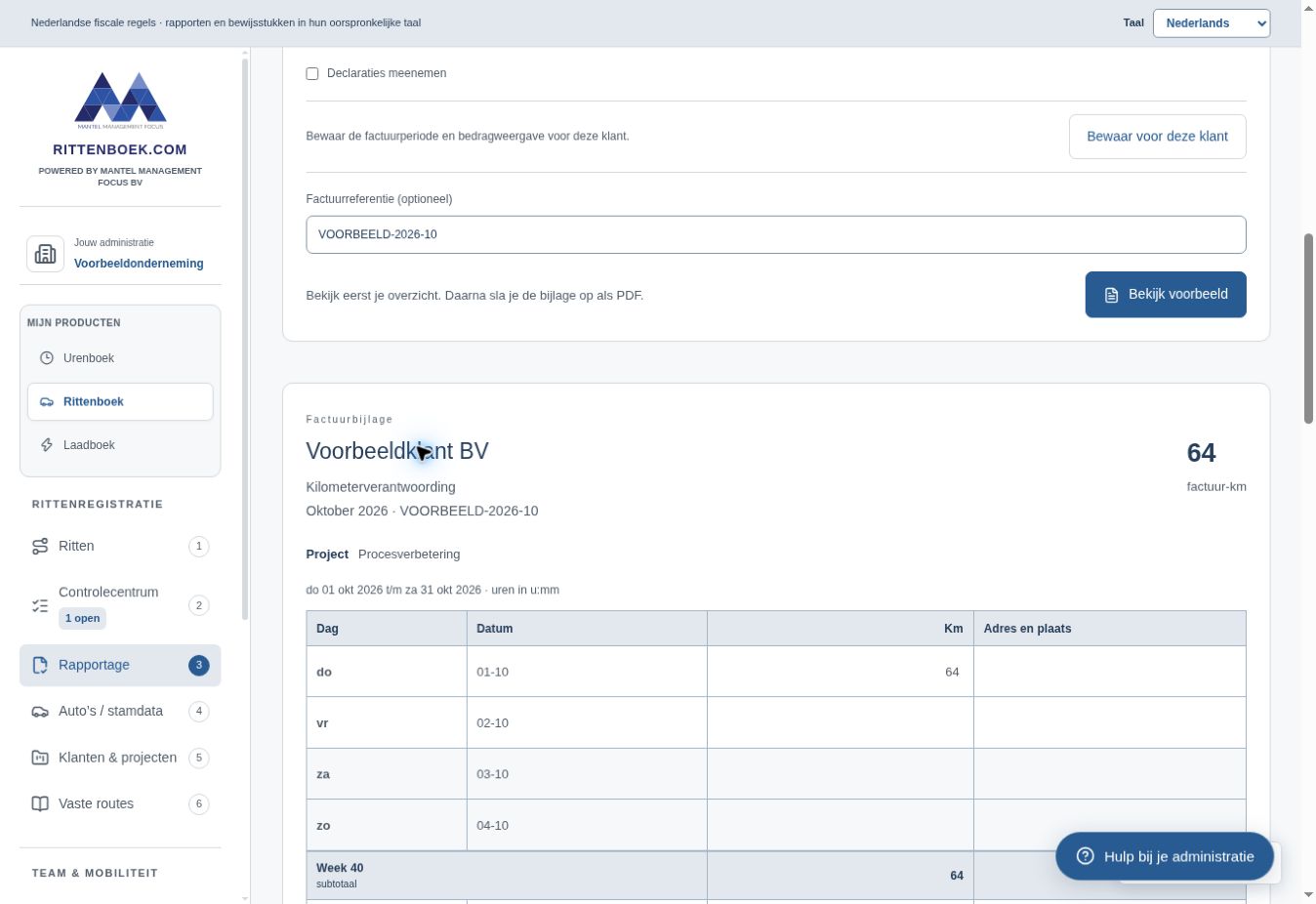
Invoice attachments from both books

From Urenboek and Rittenboek, create an attachment with hours, kilometres or both, according to the source products available to you.

  • Choose a calendar month, a week with your chosen start day or a period of exactly 28 days.
  • Amounts for hours and kilometres each have their own checkbox; both are off by default.
  • Save PDF, CSV and JSON; a saved attachment retains its original contents.

Including hours requires Urenboek. The recipient needs no account or subscription to read the PDF.

Back to the overview
Rittenboek.comFictional example data
Example screen: Invoice attachments from both books. Fictional data in the Dutch application interface.Enlarge example
Invoice attachments from both booksDutch interface
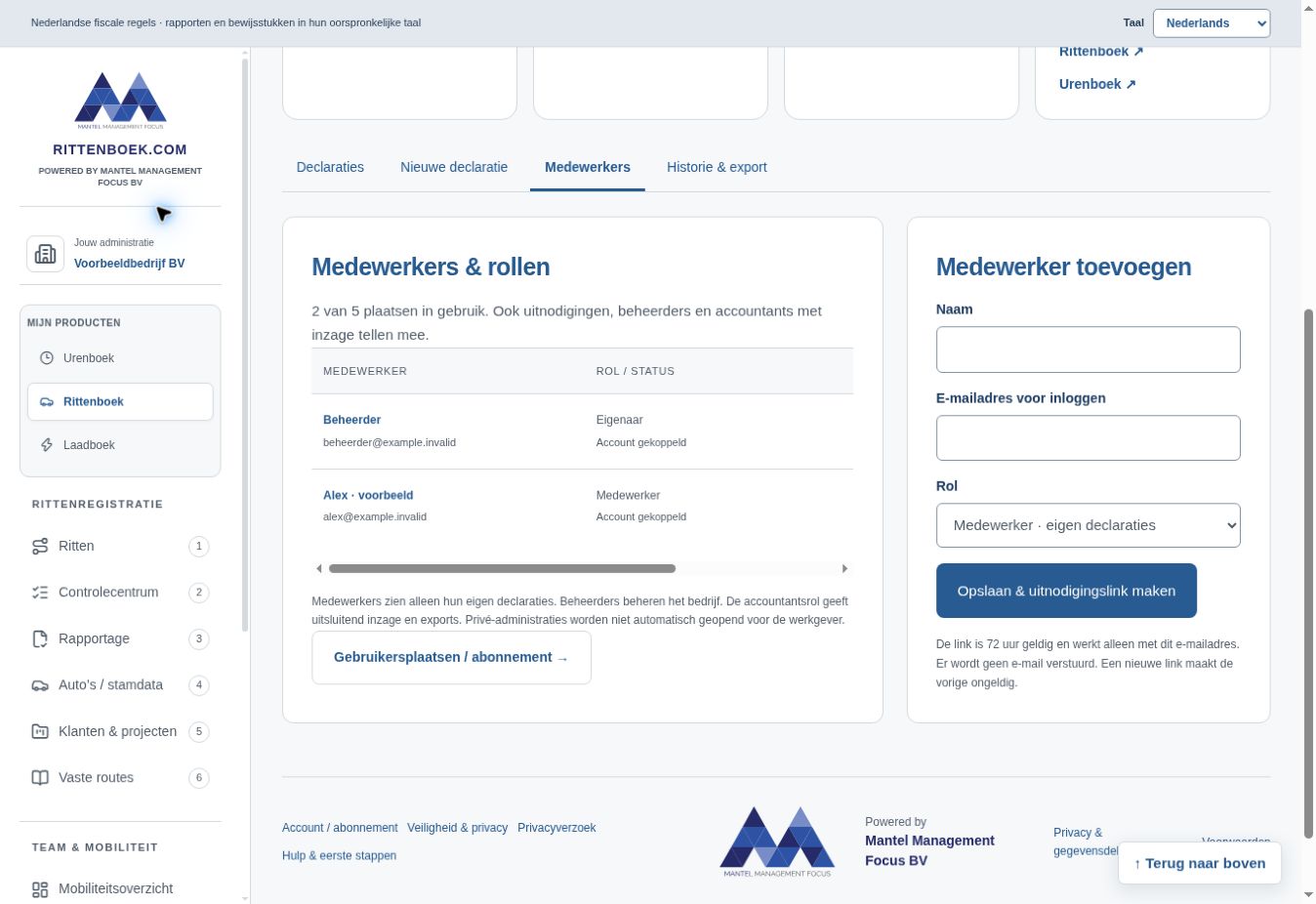
14For teams

Employees and roles

Give each person their own account and set who can manage or view the shared company records.

  • Manage employees and invitations in one place.
  • Choose the appropriate administrator, accountant or employee role.
  • Employees share selected reports and supporting documents.

Business plan. Personal records remain the employee’s own.

Back to the overview
Rittenboek.comFictional example data
Example screen: Employees and roles. Fictional data in the Dutch application interface.Enlarge example
Employees and rolesDutch interface
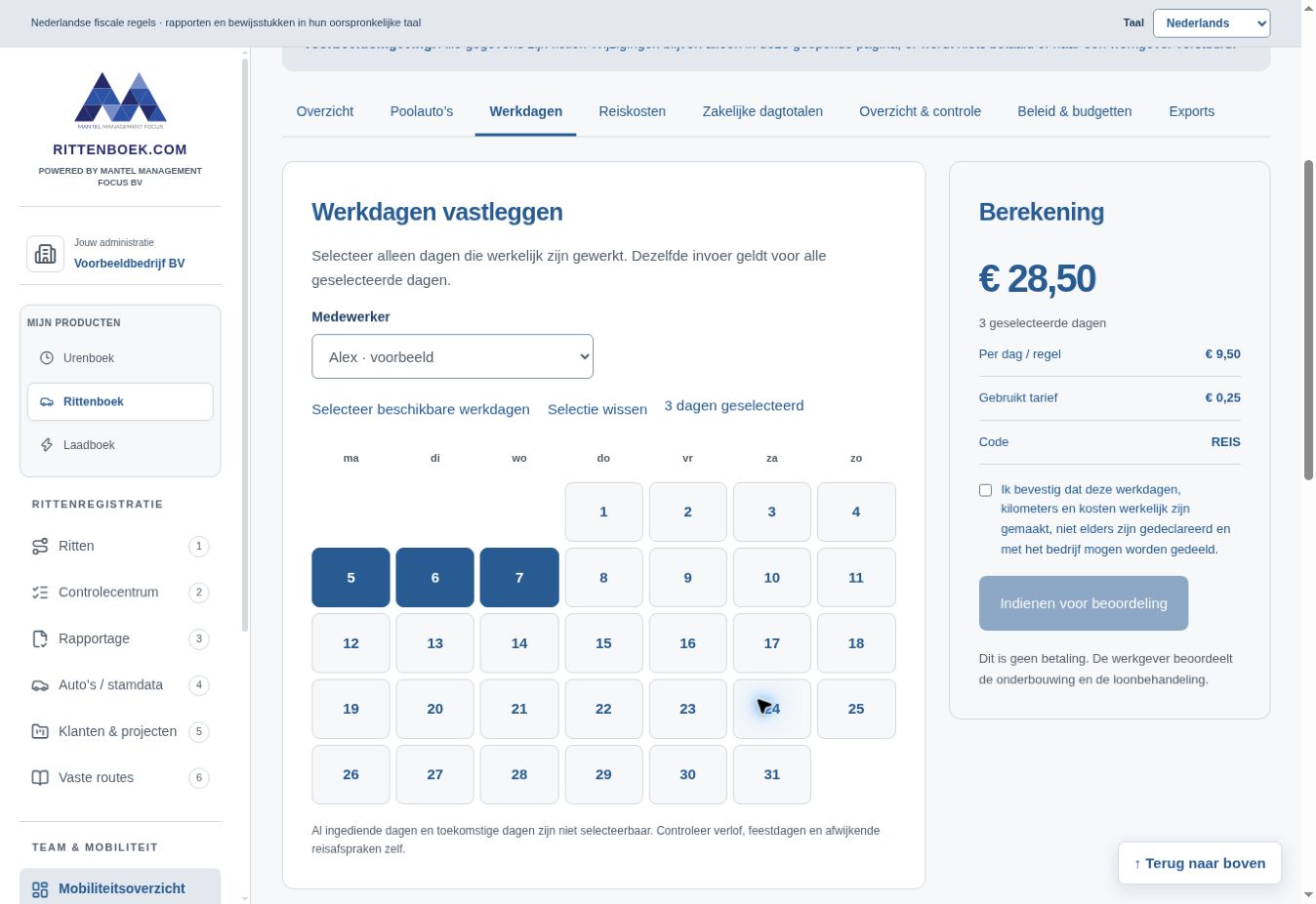
15For teams

Work calendar and travel expenses

Record workdays, working from home and commuting. Submit actual travel expenses with supporting documents.

  • Select the relevant days in the monthly calendar.
  • Specify the transport, distance and reimbursement choice.
  • Submit travel expenses separately for review.

Business plan. Submission does not mean payment.

Back to the overview
Rittenboek.comFictional example data
Example screen: Work calendar and travel expenses. Fictional data in the Dutch application interface.Enlarge example
Work calendar and travel expensesDutch interface
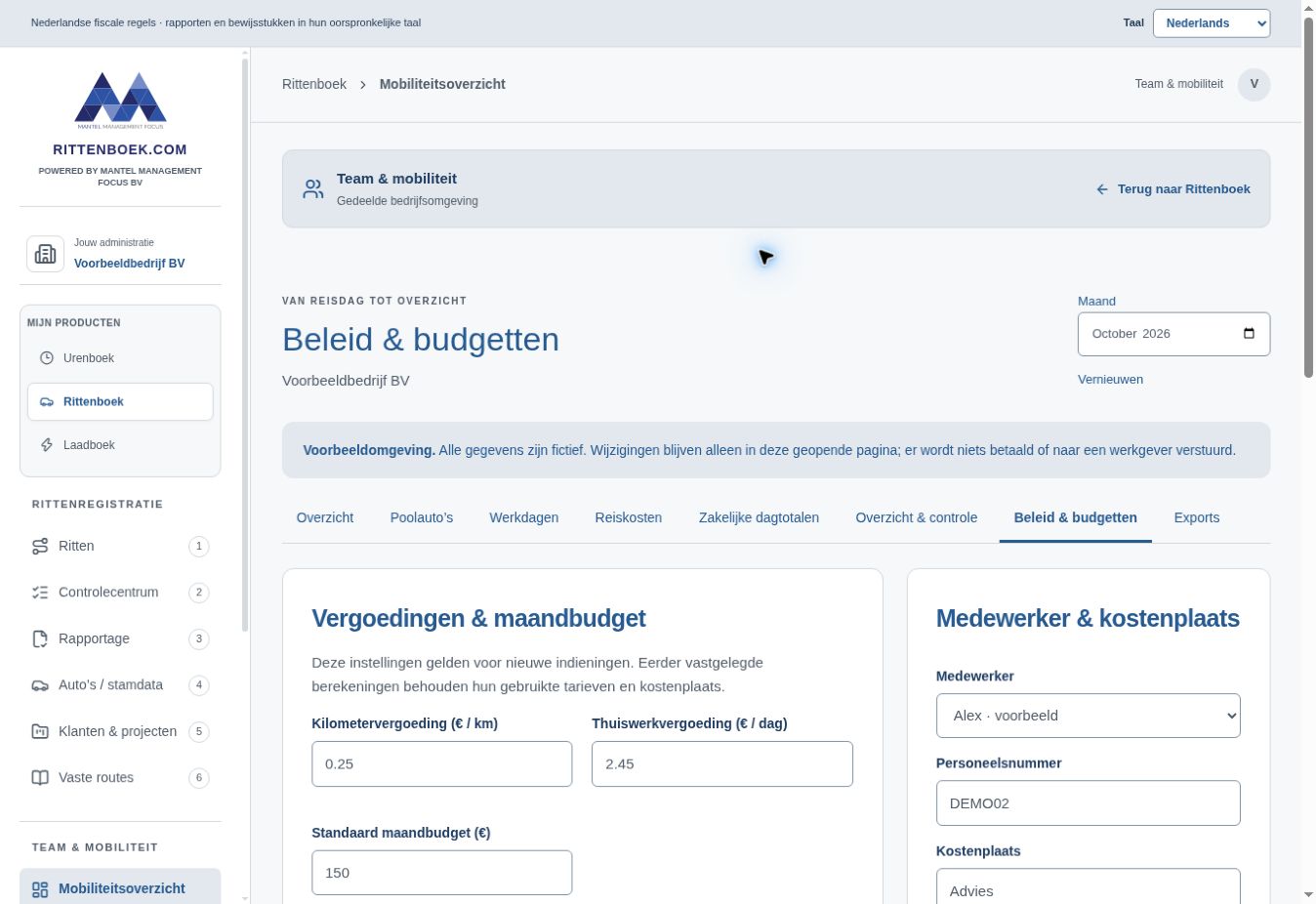
16For teams

Budgets and review

Set the mobility policy and keep costs, budgets and the review of submissions organised.

  • Set reimbursement amounts and monthly budgets.
  • Use personnel numbers and cost centres for each employee.
  • Have submissions checked by another authorised reviewer.

Business plan. Existing calculations retain their recorded assumptions.

Back to the overview
Rittenboek.comFictional example data
Example screen: Budgets and review. Fictional data in the Dutch application interface.Enlarge example
Budgets and reviewDutch interface
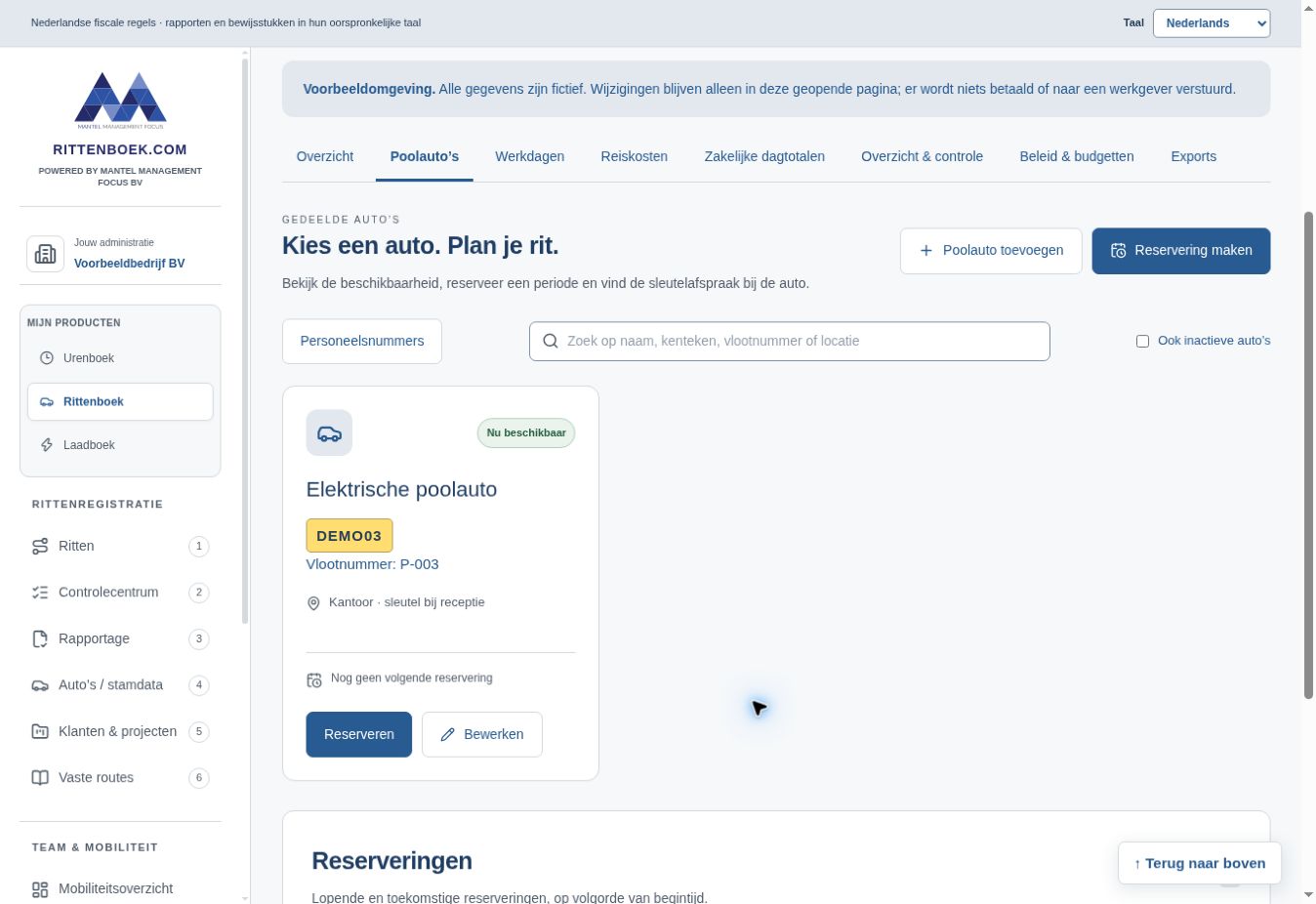
17For teams

Book shared cars

Manage shared cars and record who uses each car, when and for what purpose.

  • Record the registration, name and base location.
  • Book a time slot with an employee and trip purpose.
  • Check availability and overlapping bookings.

Business plan.

Back to the overview
Rittenboek.comFictional example data
Example screen: Book shared cars. Fictional data in the Dutch application interface.Enlarge example
Book shared carsDutch interface
18For teams

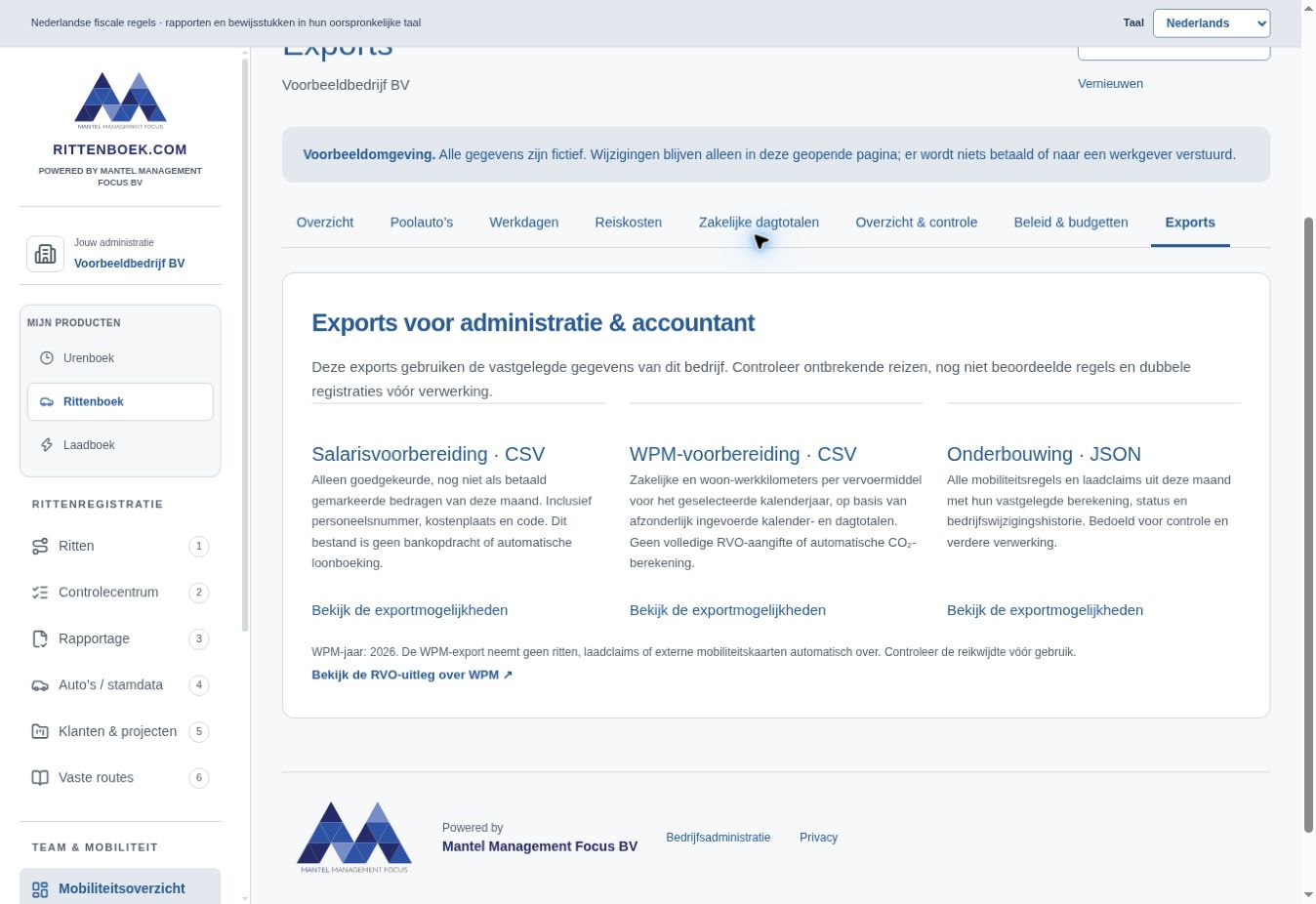
Export data for further processing

Take approved data to payroll and prepare your mobility overview using exports.

  • Export approved, unpaid amounts as CSV.
  • Group business and commuting mileage by transport type.
  • Retain supporting details and history for further review.

Business plan. No automatic bank payments or complete Dutch WPM filing.

Back to the overview
Rittenboek.comFictional example data
Example screen: Export data for further processing. Fictional data in the Dutch application interface.Enlarge example
Export data for further processingDutch interface

Does this fit your administration?

Choose the combination you need.

Choose the tools that fit your work and compare the plans.

View the plans

Explore the other demos

Laadboek.com Urenboek.com

Fictional example data · Dutch interface

Open image ↗
Back to top